Record
Keep the record current
Add a meal, fix its note or time, move it to the right day, or remove a mistake—all without leaving the conversation.
I had ramen at 1:15 a.m. Keep it with Tuesday.
Saved to Tuesday at 1:15 a.m.
Waxwing for ChatGPT and Claude
Connect Waxwing to ChatGPT, Claude, or another supported assistant. Add and correct meals in conversation, then ask your assistant to compare days and summarize possible patterns in the record you chose to keep.
Waxwing MCP is a secure connection that lets compatible AI assistants read and update your Waxwing food log after you sign in and approve access.
Included with every Waxwing plan at no extra cost · OAuth-secured · Disconnect any time
I had ramen at 1:15 a.m. Keep it with Tuesday.
Done. I added ramen to Tuesday at 1:15 a.m.
Saved in Waxwing
Tuesday, September 1
🌙 Late shift
3 meals
Coffee and toast
Rice bowl and vegetables
Ramen
Ask your history
6 selected days“Compare my late-shift days with ordinary days.”
Across the six late-shift days you selected, dinner was logged after midnight four times.
One connection, two useful directions
Use the connection in two directions: ask your assistant to update your Waxwing log, or let it review the days you choose. Waxwing stores the record; your assistant interprets it.
Record
Add a meal, fix its note or time, move it to the right day, or remove a mistake—all without leaving the conversation.
I had ramen at 1:15 a.m. Keep it with Tuesday.
Saved to Tuesday at 1:15 a.m.
Explore
Ask your assistant to review selected days, compare routines, and summarize possible patterns in the meals and context you recorded.
“Compare my late-shift days with ordinary days.”
Your assistant can compare meal timing and day notes across the days you choose.
Photo to log
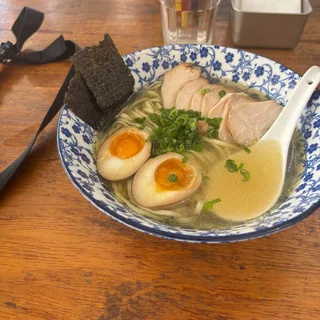
Attach a meal photo in a vision-capable assistant connected to Waxwing. The assistant interprets the image; after you confirm or correct its description, it can save the meal to your Waxwing log.
Assistant’s suggestion
This looks like ramen with chicken and eggs.
Does that look right?
Yes—save it to Tuesday.
Saved in Waxwing
Still Tuesday
Wake around 2 p.m. and go to bed around 4 a.m.? Waxwing can keep a 1:15 a.m. meal with Tuesday—where it belongs in your day.
Tuesday’s awake window
2 p.m.
Woke up
2:30 p.m.
Breakfast
12 a.m.
Calendar turns Wednesday
1:15 a.m.
Ramen · still Tuesday
4 a.m.
Went to bed
Try asking
Use the same words you would use in any conversation. Waxwing supplies the record; your assistant helps you work with it.
Possible patterns are a starting point for your own questions—not a diagnosis.
“Add the sandwich I just ate to today’s log.”
“What did I record on days when I noted a headache?”
“Summarize how my meal timing changed this month.”
“Help me spot possible patterns around the days I noted poor sleep.”
Private by default
Waxwing keeps the record you chose to make. Your assistant can work with it only after you approve access, and nothing is analyzed unless you ask.
Connect once
Paste the Waxwing connection address into your assistant, then sign in and approve access. You can disconnect it at any time.
Waxwing connection address (MCP)
https://mcp.waxwinglog.com/mcpOn Team and Enterprise, an Owner adds the connector in Organization settings first. Members then connect it from Customize.
Open Claude’s instructionsWorkspace admins or owners enable developer mode and publish the app. Enterprise and Edu admins can authorize other developers.
Open ChatGPT’s instructionsThe important details
Waxwing MCP is a secure remote Model Context Protocol server. It lets a compatible assistant work with your Waxwing food log after you sign in and approve access.
When you ask, a connected assistant can add, edit, move, or delete meals; retrieve day logs and calendar history; and add or clear day context such as an emoji or description.
Your assistant can review selected days, compare them, and summarize possible patterns in the information you recorded. Waxwing does not automatically analyze your log, score meals, or diagnose health conditions.
Yes. The connection uses OAuth, so your assistant never receives your Waxwing password. You can disconnect it from your assistant’s connector settings.
The ChatGPT and Claude connection is included with every Waxwing plan at no extra cost. Using an assistant is always optional.